
Bring your phone numbers from another provider
Your main number is on the website, the vans and every business card, so it comes with you. Porting it to Freesbe is free, works for US and Canadian numbers, and takes 1 to 3 weeks. Calls keep ringing at your old provider until the move day, so nothing goes quiet in between. An owner, admin or Phone admin sends the request from the Admin Center.
Before you start
Section titled “Before you start”- You need the phone system from Freesbe turned on. See Set up a business phone number.
- The first time, you’ll verify your identity, the same as when buying a number.
- Have a recent bill from your current provider (a PDF or a picture from the last 30 days) that shows the numbers and the account number. Most requests that come back are a name or account number that doesn’t match the provider’s records, so copy from the bill, not from memory.
- Decide what should answer the numbers once they arrive: a phone menu, a call queue, or a person. Build the menu or queue first so you can pick it in the form.
- Keep your account with the old provider open until the move day. Closing it first can lose the numbers.
1. Fill in the request
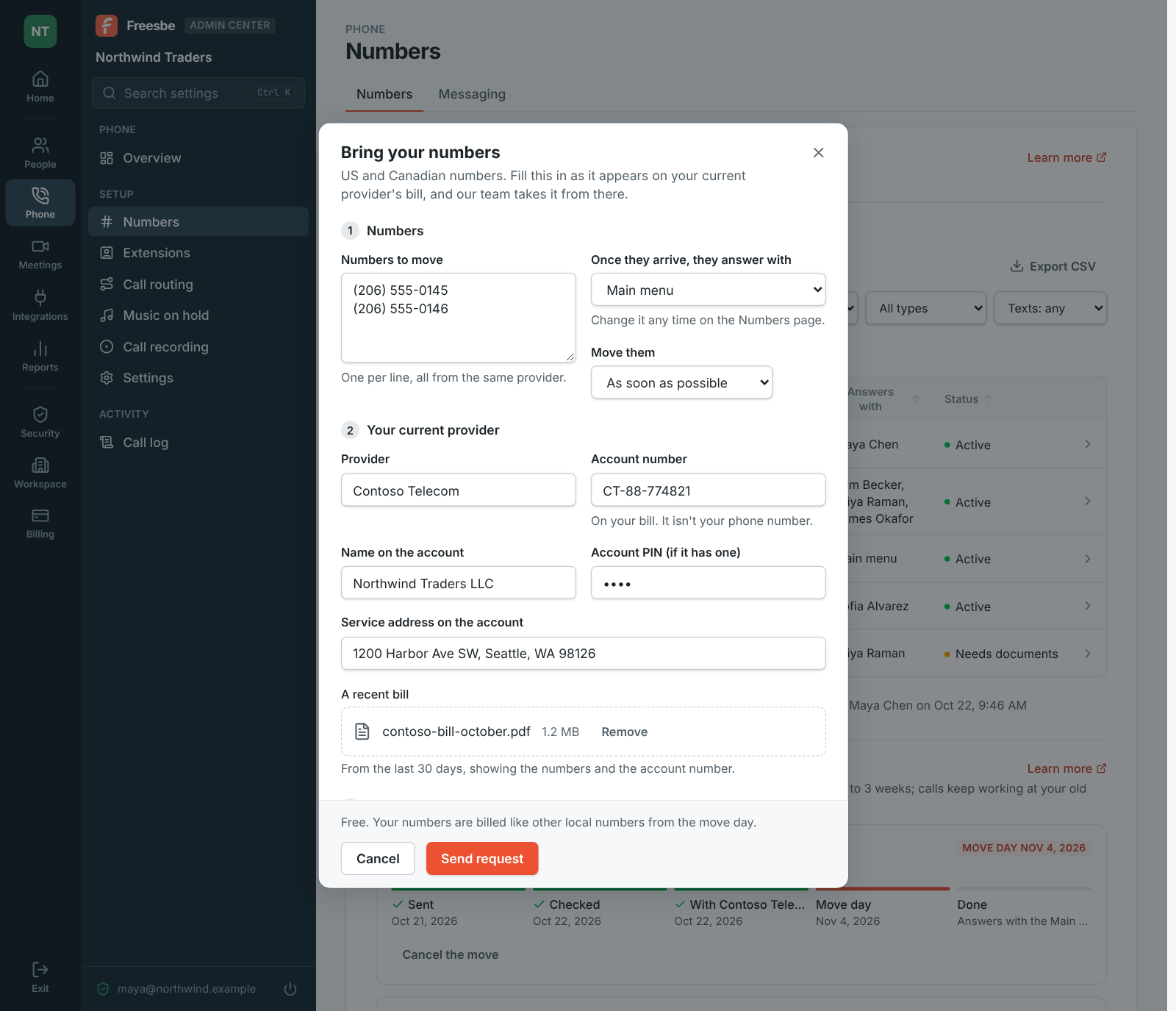
Section titled “1. Fill in the request”- Open the Admin Center, then Phone → Numbers, and click Bring your numbers.
- Under Numbers, type the Numbers to move, one per line. They must all be with the same provider: send one request for each provider.
- Choose what answers them once they arrive, and when to Move them: As soon as possible, or On a date at least a week away, say a quiet Tuesday rather than the end of the month.
- Under Your current provider, fill in the Provider, Account number, Name on the account, Account PIN (if your provider set one for moving numbers) and Service address on the account, exactly as they appear on your bill. The account number isn’t your phone number. Add A recent bill.
2. Sign it
Section titled “2. Sign it”Under Sign, read the letter of authorization, type Your full name and Your title, tick I’m signing this letter of authorization electronically and click Send request.
3. Follow it to the move day
Section titled “3. Follow it to the move day”Our team checks the request and sends it to your old provider. Moving numbers in, under your numbers on Phone → Numbers, shows where each request is: Sent, Checked, With your provider, the Move day once the provider sets it, and Done. Admins get an email at each step.
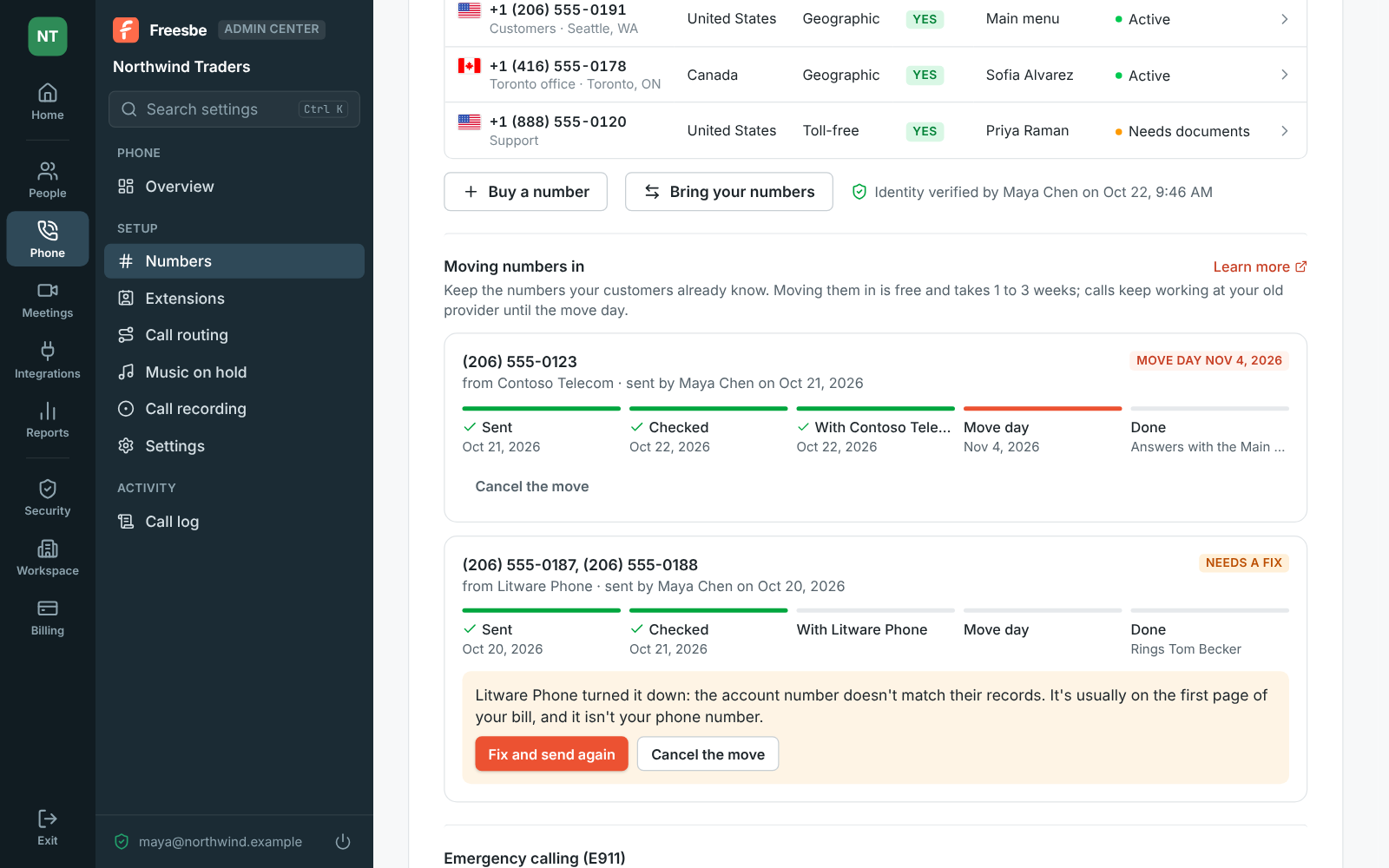
- Needs a fix: the provider turned it down, and the request says what to correct. Click Fix and send again, change what’s wrong, sign again and send it.
- Until the request is with your provider you can Change it, and you can Cancel the move any time before it’s done.
What happens on the move day
Section titled “What happens on the move day”The numbers arrive on your phone system, answer as you chose, and the request turns Done by itself. From then on they’re billed like any other number. Your PIN and the copy of the bill are deleted 30 days after the move ends.
- While you wait, buy a Freesbe number and build your menu, hours and voicemail on it, so the day the old numbers arrive there’s nothing left to set up.
- Tell the team the date. Calls ring at the old provider right up to the move, then in Freesbe.
- Set the number’s Name and caller ID settings in Phone → Numbers once it’s in, like any other number.
See Bring your numbers for the details.
Answers come from the Freesbe guides and are written by AI, so check the linked guide before relying on one. Please don't include personal details such as emails or passwords.