
Give someone admin access to only billing or phones
The person who pays the invoices shouldn’t need the keys to security settings, and the person who builds phone menus shouldn’t be able to make someone an admin. Admin roles give a member one part of the Admin Center and nothing else. This hands Northwind’s billing to Lena in finance and the phone system to Sam at the front desk. An owner or admin does it in the Admin Center.
Before you start
Section titled “Before you start”- Admin roles come with Corporate and Enterprise. They stop working if the workspace moves below Corporate, and come back with the plan.
- The person has to be a Member. Owners and admins already have every role.
- Changing roles asks you to verify it’s you first, and goes in the audit log.
1. Pick the role
Section titled “1. Pick the role”| Role | Opens in the Admin Center |
|---|---|
| Billing admin | Billing: plan, add-ons, invoices and usage. Together with Phone admin, buying phone numbers |
| Phone admin | Phone: the phone system, numbers, phone menus, call queues, call flows, call recording and the call log, and Reports → Call center. Not buying numbers, which costs money: that’s Billing |
| People admin | People: members, invites, email domains, profile fields and the punch clock, and Reports → Hours. They change members and guests, never admins, and can’t make anyone an admin |
| Helpdesk | Members to look people up, sign-in links for people imported from Slack, and Security activity. They can’t change anyone |
Everything else (security settings, integrations, the custom domain, data region and closing the workspace) stays with owners and admins. Roles stack: a phone lead who also buys numbers gets Phone admin and Billing admin.
2. Give it
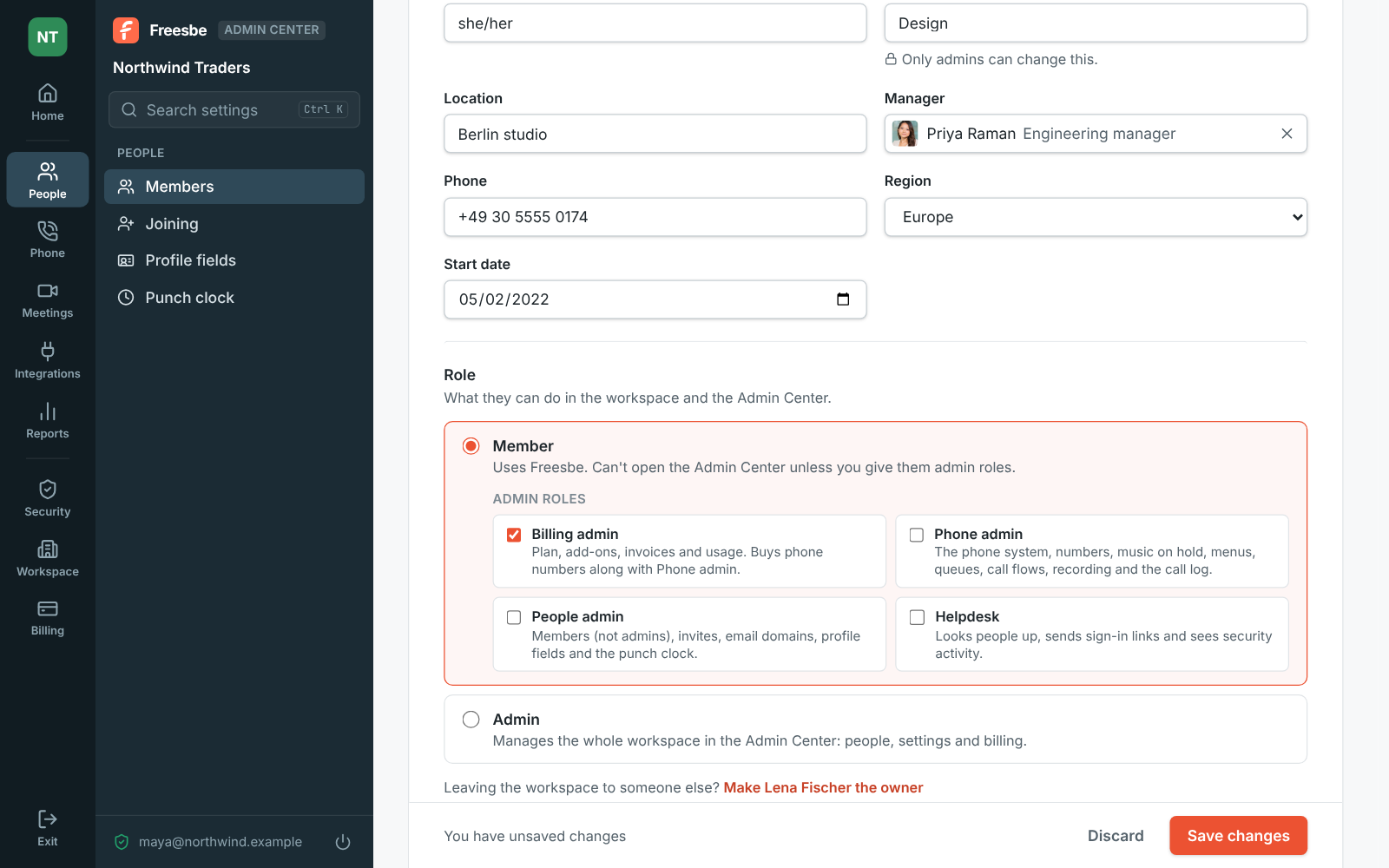
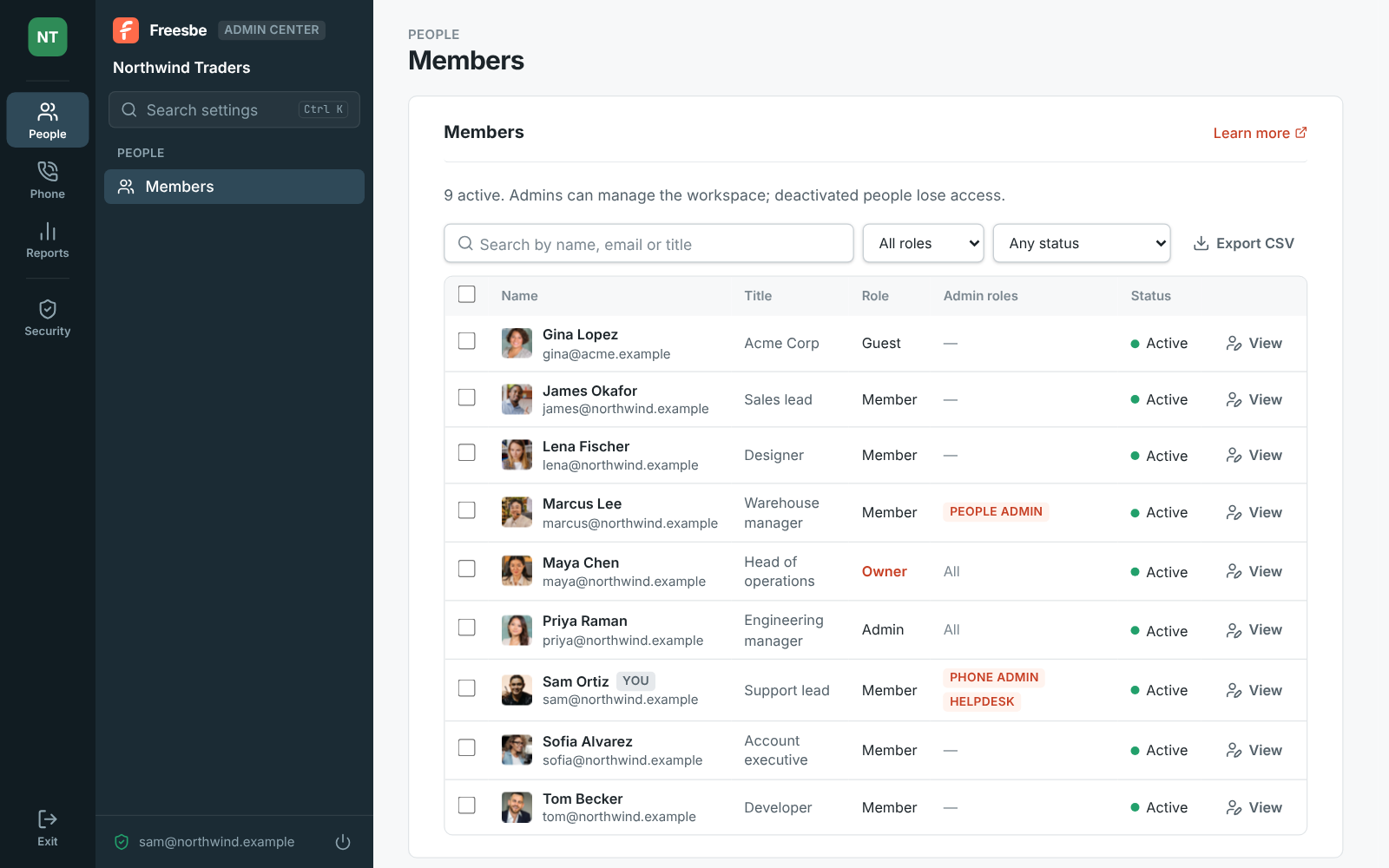
Section titled “2. Give it”- Open the Admin Center, then People → Members. The Admin roles column shows each member’s roles.
- Click the person’s name, or Edit at the end of their row.
- Under Role, keep Member and tick the roles under it.
- Click Save changes and verify it’s you.
3. Tell them how to get in
Section titled “3. Tell them how to get in”They open the Admin Center from the workspace menu like an admin does, or at manage.freesbe.net, and sign in with their Freesbe account. The Admin Center asks for a strong second step each time: a passkey, a phone approval from the Freesbe app, or an authenticator code. If they don’t have one yet, Freesbe helps them set one up on the spot.
Once in, the rail shows only their areas. A Phone admin sees Phone and Reports (just Call center); a Billing admin sees Billing. Everything else is out of sight.
When to make someone a full admin instead
Section titled “When to make someone a full admin instead”An admin can change any workspace setting, invite people, change roles, deactivate people and delete anyone’s message. If someone needs two or three areas and security too, make them an admin from the same page under Role. Handing the workspace to a new owner is the owner’s alone. See Roles.
- A Helpdesk role suits IT: they can find a person, copy a sign-in link for someone imported from Slack, and check Security activity, without changing anything.
- Take a role away the same way: untick it and Save changes. The person keeps using Freesbe as a member.
- Every Admin Center sign-in shows in Security activity, and every change they make is in the Audit log under Security → Logs.
See Admin roles for the details.
Answers come from the Freesbe guides and are written by AI, so check the linked guide before relying on one. Please don't include personal details such as emails or passwords.