
Set business hours and holidays for your numbers
Customers who call at 9 at night should hear that you’re closed and be able to leave a message, not listen to a phone ring in an empty office. This sets Northwind’s hours and holidays once, then turns them on for each number. An owner, admin or Phone admin does it in the Admin Center, on the phone system from Freesbe.
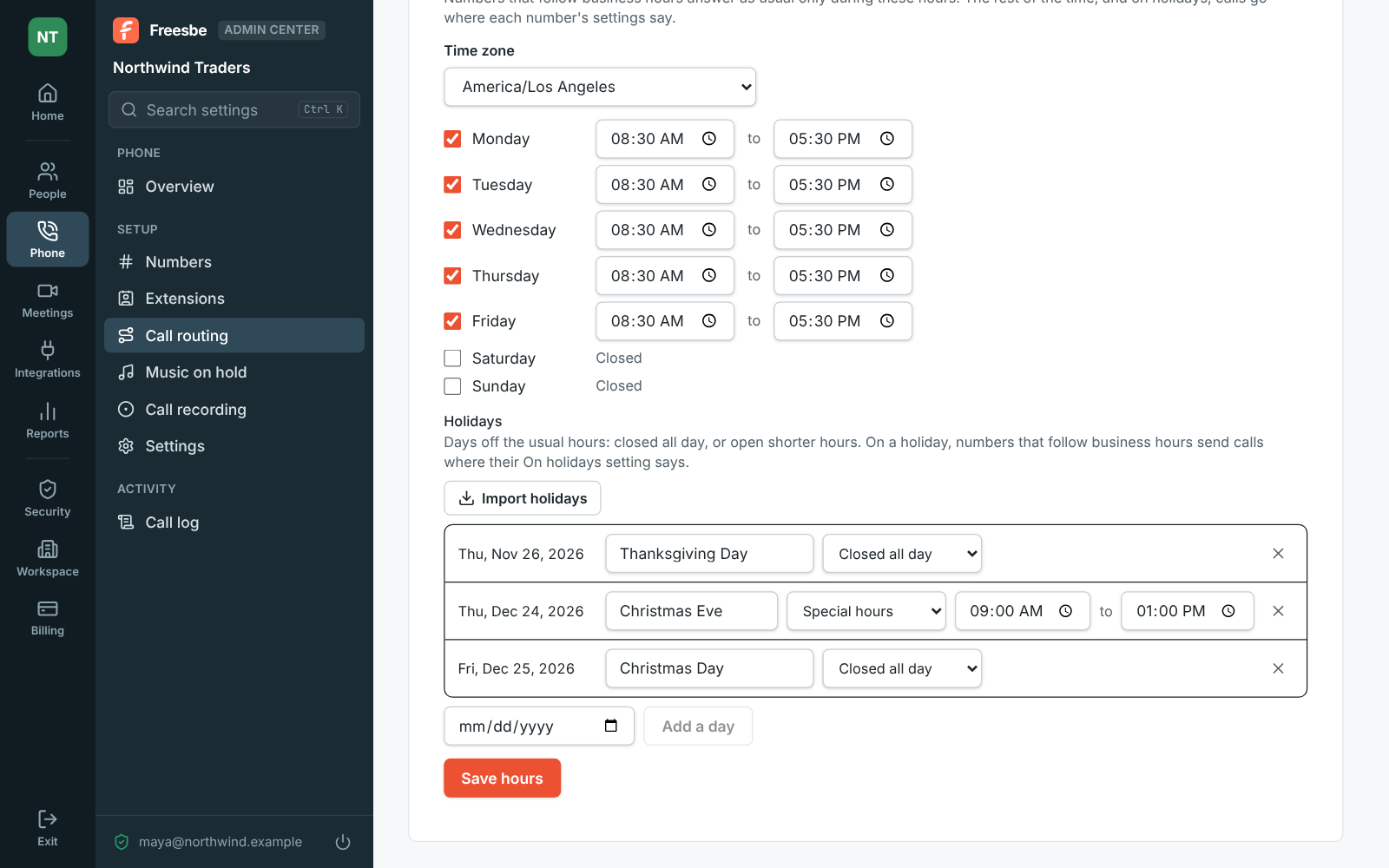
1. Set the hours
Section titled “1. Set the hours”- Open the Admin Center, then Phone → Call routing → Business hours.
- Pick the time zone your office keeps.
- Set the hours for each day of the week, and leave the days you’re closed off.
The hours are for the whole workspace. A number either follows them or answers at any hour.
2. Add the holidays
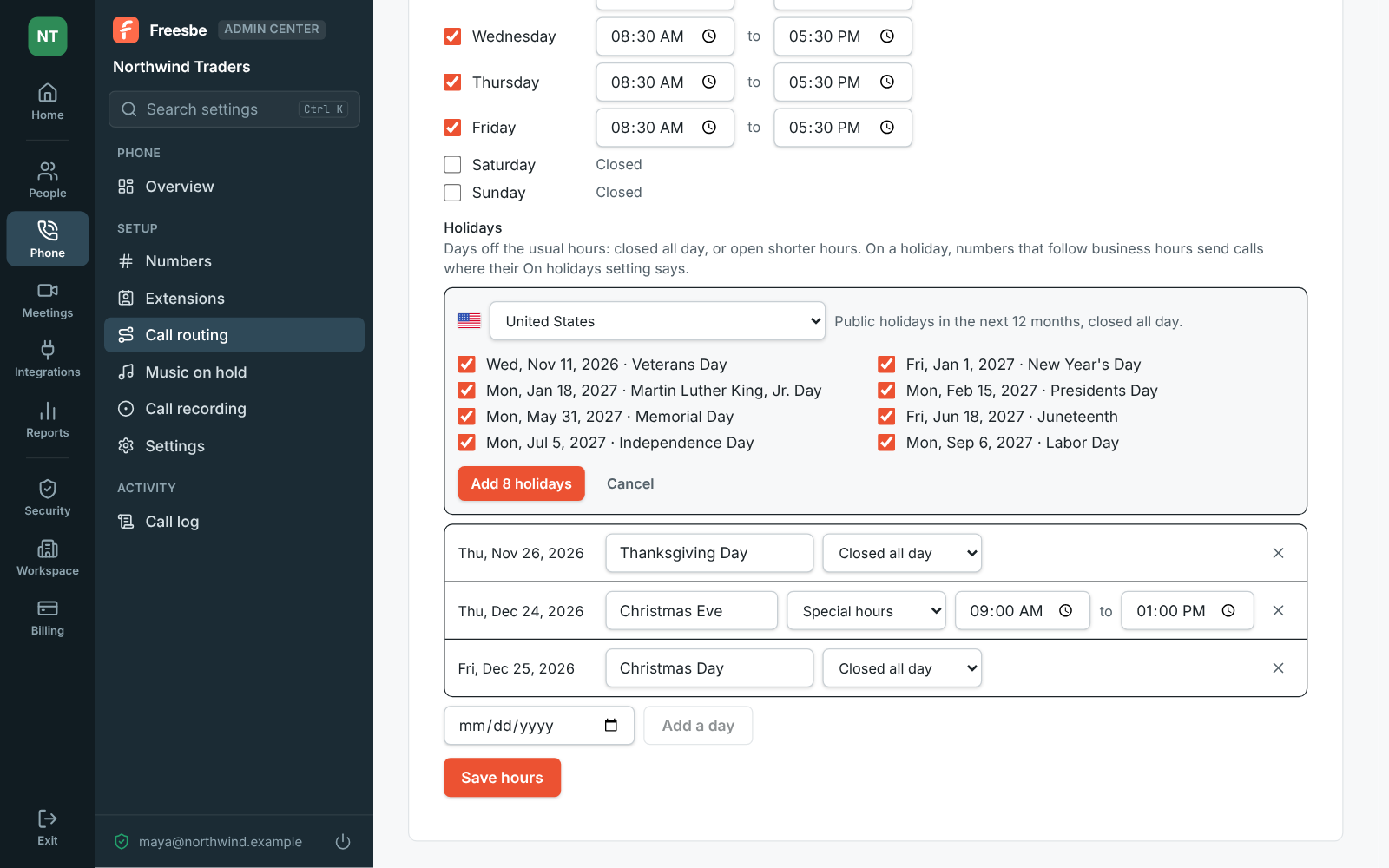
Section titled “2. Add the holidays”Under Holidays, click Import holidays, choose your country, and Freesbe lists its public holidays for the next 12 months. Untick any you work on, then Add. Each comes in closed all day, with its name.
Then tidy up:
- Holidays only some states or regions keep aren’t listed. Add those with Add a day: pick the date and give it a name.
- Change a day to Special hours when you’re open part of the day, like 9 to 1 on Christmas Eve. A holiday replaces that day’s usual hours.
- Click Save hours when you’re done.
3. Turn it on for each number
Section titled “3. Turn it on for each number”- Open Phone → Numbers and click a number.
- Under Incoming calls, turn on Follow business hours.
- Choose where calls go After hours: voicemail (the first person the number rings gets it in Freesbe like any other voicemail), a phone menu, a call queue, or hanging up.
- Choose where they go On holidays. It’s the same place as After hours unless you pick another. Outside a holiday’s special hours, calls go where After hours says.
Each change saves as you make it. Repeat for every number that should keep the hours. Numbers you leave alone answer at any hour, which suits an on-call line.
4. Play a closed message
Section titled “4. Play a closed message”A voicemail greeting can say you’re closed, but a short message before it is clearer. Open Phone → Call routing → Call flows and click Open next to the number. With Follow business hours on, the number has Open, After hours and Closed days exits. Click Add a step, choose Play a message, type what callers hear (“We’re closed for the holiday. We open again on Monday at 8:30.”) in the voice you pick, then drag a line from Closed days to it and from the message on to a Voicemail step. Click Save and it’s live right away. See Call flows.
Call us links follow the hours too
Section titled “Call us links follow the hours too”If customers reach you from a Call us link, turn on Follow business hours in the link’s settings. Outside your hours the buttons say you’re closed and show your own message.
- Test it before the first holiday: Try it on a phone menu, or call the number from a mobile after hours and listen.
- A phone menu that answers a number during the day can still be the After hours choice, with a greeting that says you’re closed and offers voicemail on one key.
- Check the holidays once a year: the import covers the next 12 months only.
See Business hours and Holidays for the details.
Answers come from the Freesbe guides and are written by AI, so check the linked guide before relying on one. Please don't include personal details such as emails or passwords.