
Set up a call queue for your support line
When a support line gets more calls than people, a call queue keeps callers on the line with a greeting, hold music and their place in line, instead of ringing out or dropping them into voicemail. This sets up a Support queue at Northwind Traders, with agents who can take breaks and supervisors who can coach them on a live call. An owner, admin or Phone admin does it in the Admin Center.
Before you start
Section titled “Before you start”- Call queues come with the Call center add-on, on top of the phone system from Freesbe.
- Everyone who’ll take queue calls needs a phone line, and their Freesbe phone has to be open somewhere (the desktop app, the browser or the mobile app) for queue calls to reach them.
1. Make the queue
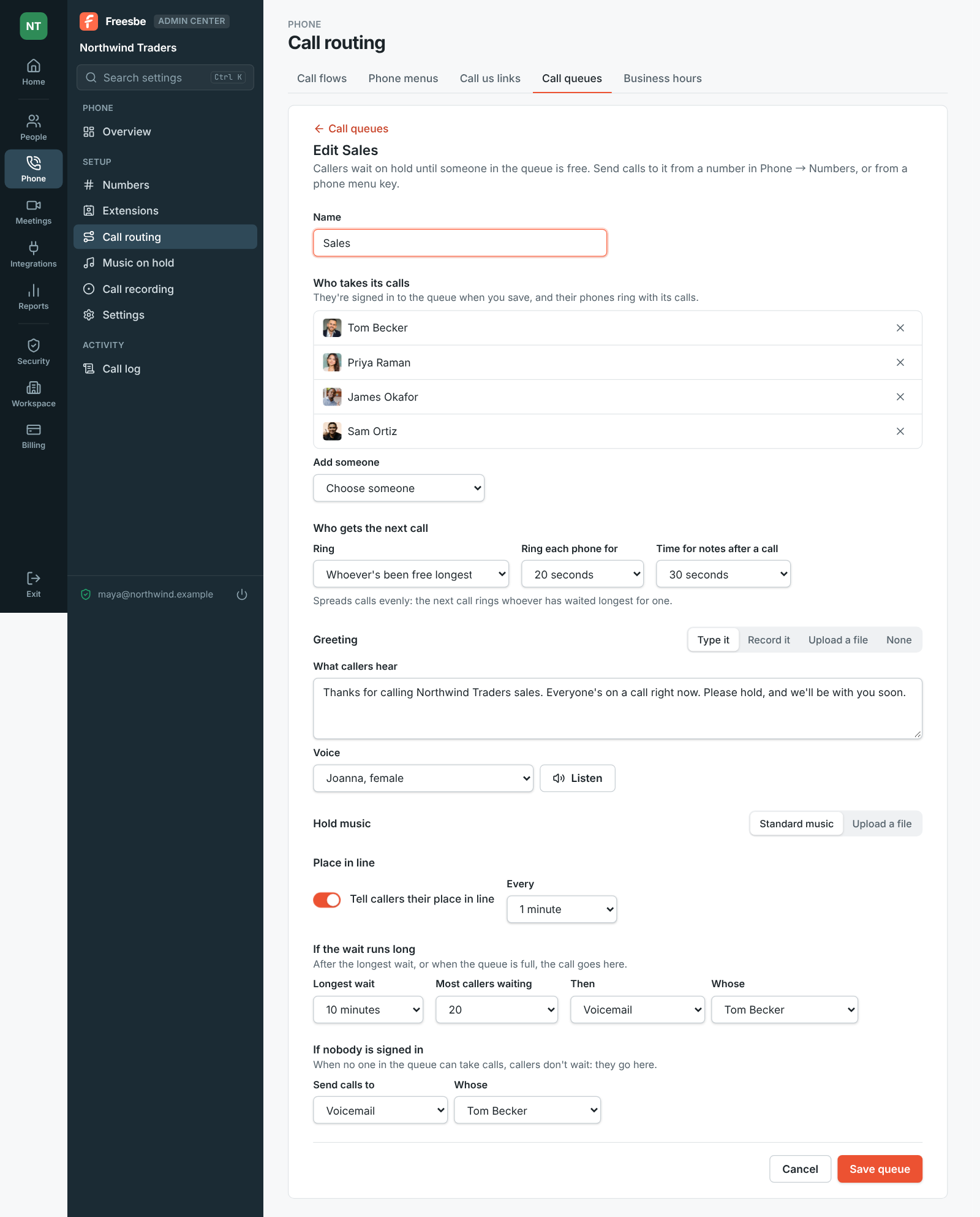
Section titled “1. Make the queue”- Open the Admin Center, then Phone → Call routing → Call queues, and click Add a queue. Name it Support.
- Under Who takes its calls, Add someone for each agent. They’re signed in to the queue when you save it.
- Under Who gets the next call, choose how calls are shared out. Whoever’s been free longest spreads them evenly; In order, from the top rings the first free person in the list, so put your main people at the top with the arrows. Everyone at once, Take turns, Whoever took the fewest calls and Anyone, at random are the other choices.
- Set Ring each phone for, how long one person’s phone rings before the call tries the next, and Time for notes after a call, a moment to write things up before the next one.
- Set the Greeting callers hear when they join: typed and read in a voice you pick, recorded or uploaded, or None. Under Hold music, keep Standard music or upload your own.
- Turn on Tell callers their place in line, every 30 seconds to 5 minutes.
- Under If the wait runs long, set the Longest wait and the Most callers waiting, and where callers go Then: voicemail, other people, a menu, another queue, or hanging up.
- Under If nobody is signed in, choose where calls go when no agent can take them. Click Save queue.
2. Send calls to it
Section titled “2. Send calls to it”Open your support number in Phone → Numbers and choose the queue under Answers with. Or, if a phone menu answers the number, pick Call queue for the support key.
3. Add break reasons
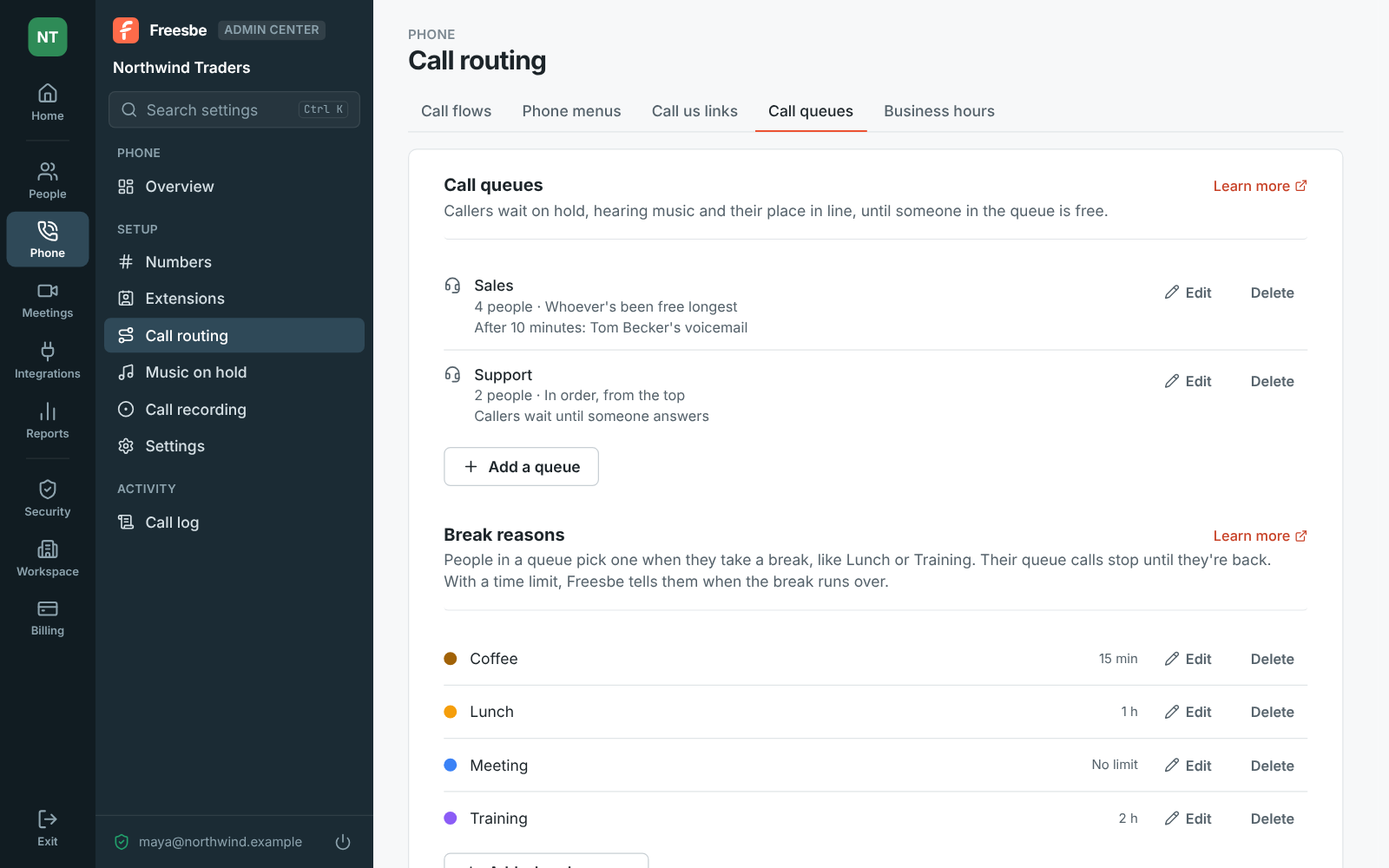
Section titled “3. Add break reasons”Agents take a break or sign out from the pill in their top bar, which says Taking calls, the break reason, or Signed out. Calls to their own number still ring.
On the Call queues page, under Break reasons, click Add a break reason for each one they should pick from: Lunch, Training, Meeting. Give it a Time limit if the break shouldn’t run longer, pick a color, and click Save. When a break runs over, Freesbe tells the agent and their pill turns red.
4. Name supervisors
Section titled “4. Name supervisors”Admins see the live Call center board already. To let a team lead see it too, pick them under Supervisors on the same page with Add a supervisor, or turn on Call center supervisor on their page under People → Members.
5. Watch the queue and coach the team
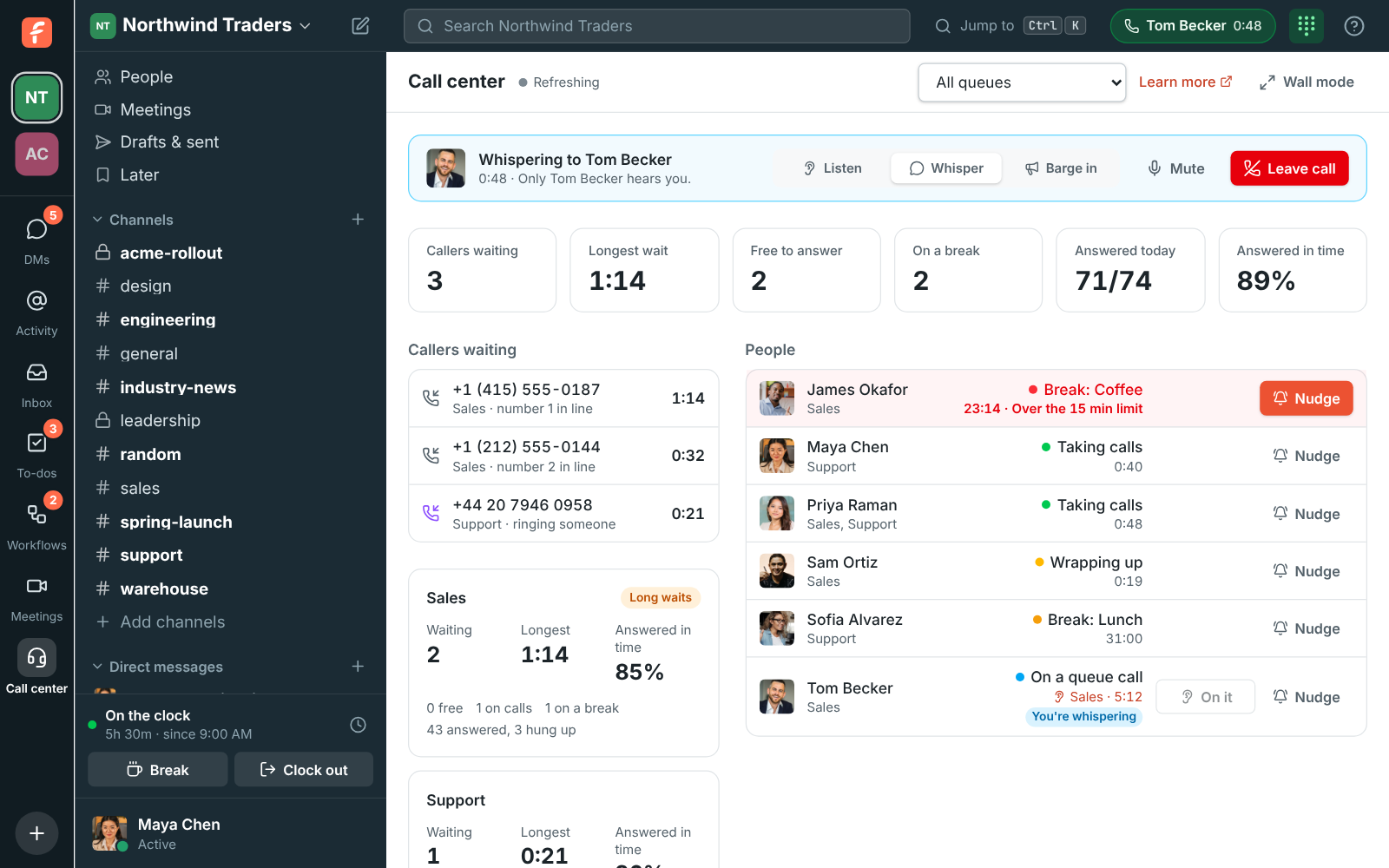
Section titled “5. Watch the queue and coach the team”Admins and supervisors open Call center in the bar on the far left, under Meetings. It shows callers waiting, each queue’s numbers for today, and what every agent is doing. Nudge sends someone a direct message. For a TV on the wall, click Wall mode.
To help with a hard caller, click Listen next to an agent on a call. Your Freesbe phone picks up on its own, so your phone has to be on and you can’t be on a call of your own. From there, switch at any time:
- Listen: hear the call. Nobody hears you.
- Whisper: talk to your colleague only. The caller doesn’t hear you.
- Barge in: join the call. Both hear you.
Mute yourself while you whisper or barge in, and click Leave call when you’re done; the call goes on without you. The agent’s row says You’re listening, You’re whispering or You’re on this call.
What happens next
Section titled “What happens next”- For numbers over days or weeks, open Reports → Call center in the Admin Center: calls, answered and missed, service level, average wait, and each person’s talk time, breaks and time signed in. See Reports.
- To record every queue call whoever answers it, turn on Record every call queue call under Phone → Call recording. See Record calls and get notes.
- A queue can’t be deleted while a number, a menu or another queue sends calls to it.
See Call queues, Breaks and the Call center board for everything.
Answers come from the Freesbe guides and are written by AI, so check the linked guide before relying on one. Please don't include personal details such as emails or passwords.