
Move your team from Slack in an afternoon
A Slack move goes best when people open Freesbe and find their channels, their history and their DMs already there, under their own name. This is the afternoon plan for Northwind Traders: export at lunch, import while you set up, send everyone their link before the end of the day. An owner or admin does it.
Before you start
Section titled “Before you start”- Slack import comes with the paid plans.
- Decide what the export should include. A standard Slack export usually contains public channels only; exports with private channels and DMs are only available to owners on some Slack plans. Freesbe imports whatever the zip contains.
- Create the Freesbe workspace first, and choose its data region while you do: imports are stored in the region, and it can’t be changed afterwards without support.
- Slack’s file links in the export stop working after a while, so import soon after downloading.
1. Export from Slack (lunchtime)
Section titled “1. Export from Slack (lunchtime)”- In Slack, open Workspace settings → Integrations & apps → Import from Slack/Export Data → Export.
- Choose the date range and start the export.
- Download the zip Slack emails you.
2. Upload it to Freesbe
Section titled “2. Upload it to Freesbe”- In Freesbe, open Workspace settings → Integrations & apps → Import from Slack.
- Click Upload Slack export and pick the zip.
- Wait for the upload to finish. After that you can close the window; the import keeps running.
The Imports list shows each import’s progress: reading the export, adding people, creating channels, importing messages, linking threads and copying files from Slack. Importing the same export again is safe: nothing is duplicated. A very large export (millions of messages) stops with a note to email support@freesbe.net, and we run those for you.
3. Set up while it runs
Section titled “3. Set up while it runs”The import takes a while on a big workspace, which is time to do the rest:
- Add the logo and decide on sign-in: see Secure your workspace.
- Add your email domain so anyone you missed can join on their own.
- Make the one or two channels Slack didn’t have, like #help-with-freesbe.
How channels and people are matched
Section titled “How channels and people are matched”- A Slack public channel with the same name as an existing Freesbe public channel is merged into it. Private channels are never merged; each comes in as its own private channel.
- People who already have a Freesbe account with the same email get their Slack history on that account. Everyone else gets an account that waits for them, with their history in it.
When the import finishes, everyone’s app reloads to show it.
4. Get everyone signed in (end of the day)
Section titled “4. Get everyone signed in (end of the day)”Imported people who aren’t on Freesbe yet show Not signed in yet under People → Members in the Admin Center. Each person takes over their account with a sign-in link, so nobody can claim someone else’s messages just by knowing their email. Under People waiting to sign in:
- Email everyone their link, the quickest.
- Download links (CSV) with each person’s name, email and link, to send them yourself.
- Copy one person’s link from Members, for stragglers.
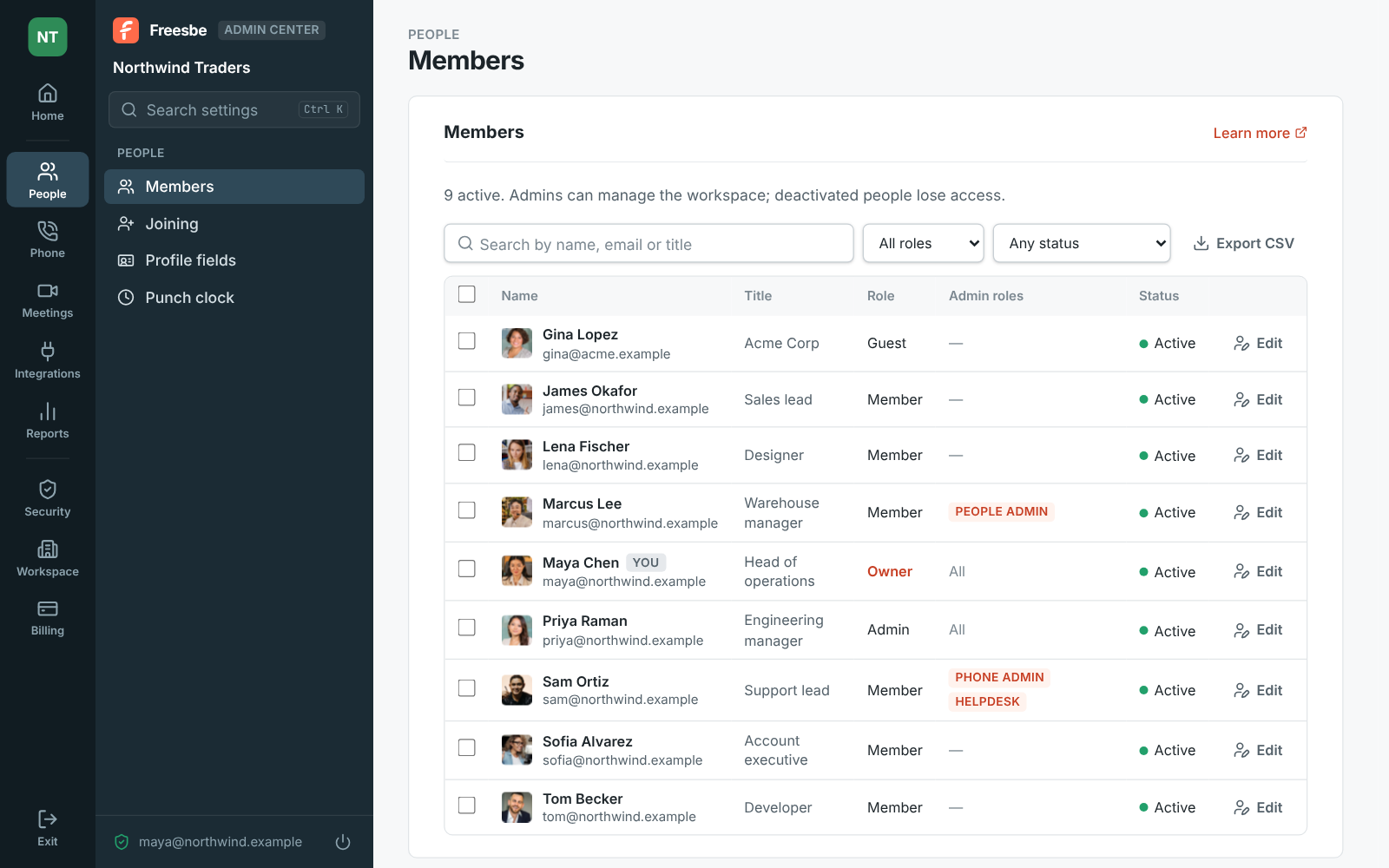
Links work for 30 days. People can also take over their account themselves with the address Slack had for them, by signing in with an emailed sign-in code, continuing with Google or Microsoft, or signing up with a password, which emails them their link. Opening a link lets them set their name and password; if they’re already signed in with another account, the link adds the Slack history to it.
5. What to tell people
Section titled “5. What to tell people”Send one message in Slack and one email:
We’re on Freesbe from tomorrow. Check your email for a link to your account: your channels, DMs and history are already there. Install the desktop app from the same email, and the phone app from your app store. Slack stays read-only for a week.
Point them to the desktop app, which keeps notifying with its window closed, and to Keep notifications under control for the first-day settings.
6. Repoint the webhooks
Section titled “6. Repoint the webhooks”Anything that posted into Slack (monitoring, CI, the CRM) needs a Freesbe address. Point each Slack incoming webhook at a Freesbe incoming webhook instead; see Set up an incoming webhook. For the common tools, Freesbe has its own integrations under Workspace settings → Integrations & apps; see Choose an integration.
- Stop import keeps what was brought over so far, if you need to start again with a better export.
- A Helpdesk admin role lets IT copy sign-in links for the week without being a full admin. See Give someone admin access to only billing or phones.
- Corporate and Enterprise include help moving from Slack. Write to support if the export is unusual.
See Import from Slack for the details, and Roll out Freesbe to your team for the weeks after.
Answers come from the Freesbe guides and are written by AI, so check the linked guide before relying on one. Please don't include personal details such as emails or passwords.